
Connect your website to your AI Business Profile
Context
This guide is for a business owner or an authorized manager who has claimed their GoVisit AI Business Profile and is ready to connect it with their company website.
A link from the business website tells visitors, search engines, and AI agents that the business recognizes its AI Business Profile as an extension of its online presence. It also gives them a clear path to additional business information when a detail is not available on the website itself.
Complete both tasks below to connect your website to the profile: add a visible GoVisit social icon and update the website’s JSON-LD schema.
You need to be able to edit your company website, or ask your website or CMS admin to make the change.
1. Add the GoVisit social icon
Choose an icon that fits your website
Place the GoVisit icon with the website’s existing social and profile links. Choose the shape, border, and color treatment that best matches that row or group of links. The icon does not need to be the same size as every neighboring platform icon, but it should have a comparable visual weight and enough contrast to remain recognizable.
The image-only grid below keeps every option visible. Select a design to update the snippet.
Add the link beside your other profiles
Add the link in the same visible area as the website’s Facebook, Instagram, LinkedIn, Tripadvisor, Booking.com, or other social and profile links. The link must be:
- visible to website visitors;
- a normal HTML
<a>link that exists in the page’s initial HTML; - crawlable without JavaScript or a click handler;
- free of
nofollowandsponsoredattributes; and - paired with meaningful, localized
alt,aria-label, andtitletext.
Do not hide the link, create it only after a JavaScript interaction, or replace the link semantics with an inline SVG that is not contained in a real <a> element.
Use the selected HTML snippet
Choose an icon above, use the copy icon in the top-right corner of the code window, and paste the complete block into the website’s social/profile-links area. Replace YOUR_PLACE_GERS_ID with the UUID of your business before publishing. A GERS ID has the format xxxxxxxx-xxxx-xxxx-xxxx-xxxxxxxxxxxx.
Replace the GERS ID
Replace only YOUR_PLACE_GERS_ID with the UUID shown for your business in GoVisit. Keep the rest of the profile path unchanged.
Use the right profile language
The language-neutral URL in the snippet lets GoVisit choose the default profile language. If your website has localized pages, keep the same GERS ID and use the corresponding locale path:
- English:
https://govisit.ai/places/gers/YOUR_PLACE_GERS_ID/en - Czech:
https://govisit.ai/places/gers/YOUR_PLACE_GERS_ID/cs
Use the exact localized URL shown by GoVisit when another supported locale is available. Do not create a second profile or change the GERS ID when switching languages.
Example HTML
For example, a GoVisit link with a sample GERS ID could look like this:
<a href="https://govisit.ai/places/gers/aaaaaaaa-bbbb-cccc-dddd-eeeeeeeeeeee/en"
   aria-label="AI Business Profile on GoVisit"
   title="AI Business Profile on GoVisit">
  <img src="/images/brand/ai-business-profile-govisit-default.svg"
       alt="AI Business Profile on GoVisit">
</a>
2. Update JSON-LD on every website page
Add the minimum JSON-LD below to the server-rendered HTML of every page on your website. Put it in the shared server-side template or layout so it is present in the initial HTML. Do not add it only with client-side JavaScript.
Each language variant should use the matching language link on GoVisit. For a page in a language that GoVisit does not support, use the English profile URL as the default. Keep the same YOUR_PLACE_GERS_ID for every language variant.
Keep the properties your website already uses, such as its name, URL, address, and telephone number. The example below shows a meaningful Hotel object; replace its values with your own. Use /en for an English or default page, /cs for a Czech page, and the corresponding supported locale for other languages.
<script type="application/ld+json">
{
  "@context": "https://schema.org",
  "@type": "Hotel",
  "@id": "https://hotel-example.com/#hotel",
  "name": "Example Hotel Prague",
  "url": "https://hotel-example.com/",
  "address": {
    "@type": "PostalAddress",
    "streetAddress": "Václavské náměstí 1",
    "addressLocality": "Prague",
    "postalCode": "110 00",
    "addressCountry": "CZ"
  },
  "sameAs": [
    "https://govisit.ai/places/gers/aaaaaaaa-bbbb-cccc-dddd-eeeeeeeeeeee/en"
  ]
}
</script>
The sameAs property is the GoVisit connection to add to your existing Hotel object. Keep your other schema values as they are:
"sameAs": [
  "https://govisit.ai/places/gers/aaaaaaaa-bbbb-cccc-dddd-eeeeeeeeeeee/en"
]
Check the connection
After publishing the change, verify that:
- the icon is visible beside the other social/profile links;
- the link opens the correct AI Business Profile;
- the icon link is present in the website’s initial HTML;
- every page contains the JSON-LD in its initial, server-rendered HTML;
- each language page points to the matching GoVisit profile language, or English when no matching locale is available; and
- a representative URL for each language passes a check in Google’s Rich Results Test or the Schema.org Validator.
Example results
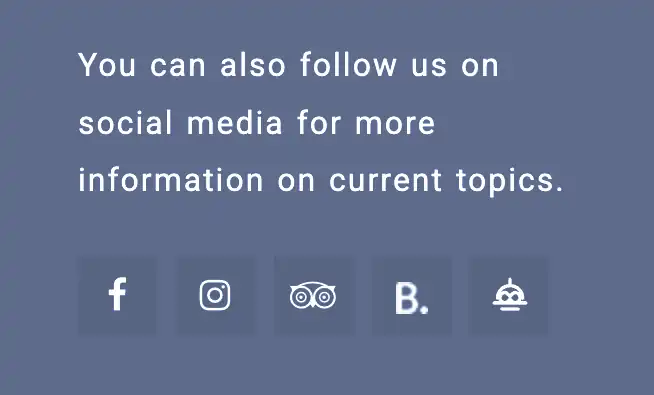
The GoVisit icon should appear with the other social and profile links:
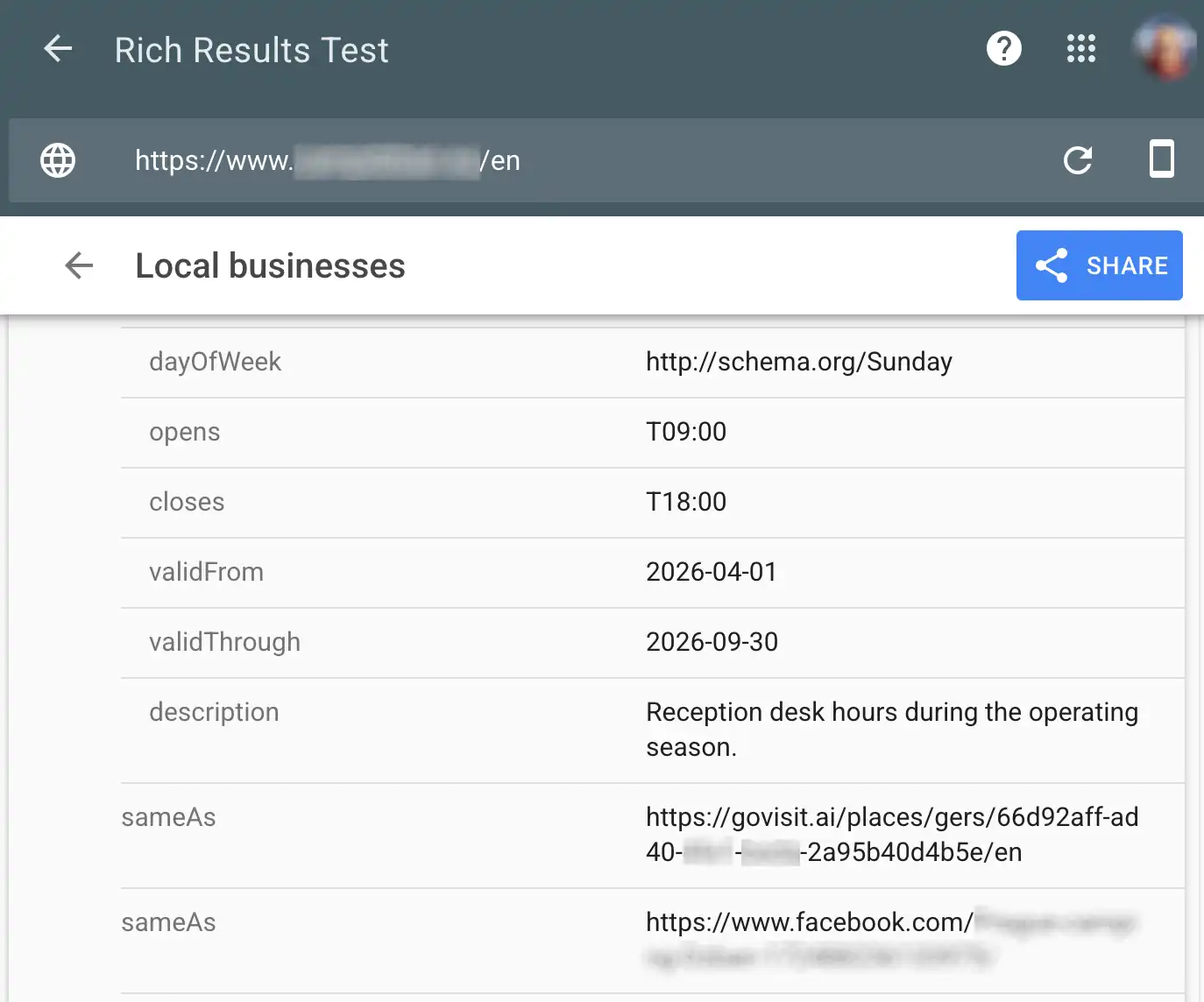
The JSON-LD result should show the GoVisit profile in sameAs:
Congratulations! You have successfully connected your new AI Business Profile to your company website.